
2021 : An Events Odyssey
“The prospect of mass gatherings is negligible at best until we get to herd immunity and we get to a vaccine.” -Governor Newsom of California, April 14, 2020
"Large gatherings such as concerts and sporting events may not be approved in the city for at least 1 year... It's difficult to imagine us getting together in the thousands anytime soon, so I think we should be prepared for that this year," -Mayor Garcetti of Los Angeles, April 15, 2020
This is about what I was expecting, but for those of us who make our living in events, it means we’re likely out of work until mid 2021 or beyond.
I’ve honestly been expecting that timeline for a while now, so while it’s devastating news, it’s at least somewhat validating to have more official certainty on that point.
Our industry is extremely adaptable, extremely flexible, and extremely nimble. Show business will still exist now and in the future - there are too many of us addicted to the craft for it to disappear. Online productions will fill the gaps, creative technologies and solutions will be more and more common, and communication, education, and entertainment will continue.
“The prospect of mass gatherings is negligible at best until we get to herd immunity and we get to a vaccine.” -Governor Newsom of California, April 14, 2020
"Large gatherings such as concerts and sporting events may not be approved in the city for at least 1 year... It's difficult to imagine us getting together in the thousands anytime soon, so I think we should be prepared for that this year," -Mayor Garcetti of Los Angeles, April 15, 2020
This is about what I was expecting, but for those of us who make our living in events, it means we’re likely out of work until mid 2021 or beyond.
I’ve honestly been expecting that timeline for a while now, so while it’s devastating news, it’s at least somewhat validating to have more official certainty on that point.
Our industry is extremely adaptable, extremely flexible, and extremely nimble. Show business will still exist now and in the future - there are too many of us addicted to the craft for it to disappear. Online productions will fill the gaps, creative technologies and solutions will be more and more common, and communication, education, and entertainment will continue.
But the kind of events we have had for the past few years in what was a growing and booming events market aren’t coming back for a long time. Many of our friends and colleagues will not be able to hold out for a year or more for events to come back, and will move on to other industries. I expect the integration market to boom as companies enhance telecommunications solutions, and I expect the broadcast sector to grow as more and more goes online. And I think many of our colleagues will leave production entirely for other different fields.
I am not optimistic about the viability of the live event production industry over the next few years. I think we have a lot working against us and I believe many production companies, big and small will be casualties of this pandemic.
I am however extremely optimistic about the futures of the people in this industry - my friends, my colleagues and myself because I know that we are as adaptable, innovative, and gritty as any industry out there. I am optimistic many of us will find opportunities in new production and AV market segments, and that those folks who move to greener pastures in other industries will flourish, bringing the skills they honed on the show site to new sectors.
I love event production and I want nothing more than to see the curtain rise again. I love the work and the stress and the exhilaration of that first “g-o”. I love the final cue and the curtain drop and that last slam of the last truck and the feeling of exhaustion and satisfaction of watching the show roll away. I love my colleagues and friends and brothers and sisters on the crew, who work tirelessly from load in to load out to make possible the closest thing I know to magic. And someday soon we’ll all have that again.
Until then, to all my production friends, I love you and miss you - please reach out. We’re all lonely and confused and need each other more than ever. Share with me - I want to hear your celebrations and your pains and the skills you want to learn and how you are celebrating your little successes in this time. Let’s share opportunities for work and jobs in and out of production that we can use to keep afloat or re build our careers. If folks leave the industry let’s leave room for then to re join us when we’re back in action and for those building opportunities elsewhere let’s build bridges to bring our production colleagues along with us.
Events are as close to magic as anything I have ever experienced, and that magic isn’t going away. The show will go on, and we’ll be there to make it possible. Until then, let’s please remember our community and build each other up. We all need a hand.
Tim Kerbavaz is the Technical Director of Talon Entertainment Audio Visual.
Talon Entertainment Audio Visual provides event AV production services for private, corporate, and community events across the United States. Serving a wide range of events, from political round-tables, to Silicon Valley Tech Company Conferences, to community festivals, to automotive-industry board meetings, Talon AV provides expertise and an exemplary attendee experience.
Header Image Credit: Photo by Anthony DELANOIX on Unsplash
Live from Quarantine - The New Normal of Live Events
Live Events are changing and we’d better keep up
Watching The iHeart Living Room Concert for America presented by FOX on Sunday evening, I was struck with the overwhelming sense that this is the “new normal.” This is what a live event looks like now, at least in the immediate future.
Clients have been calling me all week, assessing how to put traditionally in-person events like galas and graduations online. As an events professional, my job is to bring the expertise, technology, and teams to execute my client’s vision, whether that’s projection mapping an abandoned cement factory, holding a benefit concert in a downtown intersection, or figuring out how to hold a graduation or a gala fully online. Events bring people together over shared goals and shared connections, teach and share knowledge, reinforce social bonds, and build communities. The challenge now is how to convey to an online audience the messages and emotional impacts we experience live and in-person. This is the problem I hear over and over again among my peers, friends, and even competitors as our whole industry grapples with connecting services to our communities during COVID-19. How do we continue to educate, inspire, and bring joy to our audiences in this time of social distancing?

Live Events are changing and we’d better keep up
March 30, 2020 - Tim Kerbavaz, Talon Entertainment Audio Visual
(Published under the same title on LinkedIn Pulse)
Watching The iHeart Living Room Concert for America presented by FOX on Sunday evening, I was struck with the overwhelming sense that this is the “new normal.” This is what a live event looks like now, at least in the immediate future.
Clients have been calling me all week, assessing how to put traditionally in-person events like galas and graduations online. As an events professional, my job is to bring the expertise, technology, and teams to execute my client’s vision, whether that’s projection mapping an abandoned cement factory, holding a benefit concert in a downtown intersection, or figuring out how to hold a graduation or a gala fully online. Events bring people together over shared goals and shared connections, teach and share knowledge, reinforce social bonds, and build communities. The challenge now is how to convey to an online audience the messages and emotional impacts we experience live and in-person. This is the problem I hear over and over again among my peers, friends, and even competitors as our whole industry grapples with connecting services to our communities during COVID-19. How do we continue to educate, inspire, and bring joy to our audiences in this time of social distancing?
Virtual Events 2020 - Combining ENG with Cell Phones
The iHeart/Fox “concert” was effectively a telethon, soliciting donations for both Feeding America and the First Responders Children’s Foundation. Combining ENG-style recordings of artists performing in their homes and studios with phone camera cameos and into-the-lens host segments, the program tugged at heartstrings and brought joy and levity into living rooms across America with a relatively low-tech, but very earnest and touching format.
The broadcast was a concert in the sense that it was mostly performances of music, and it was a TV show in that it was video-based and aired on a major network. But it wasn’t pretending to be an in-person concert or a traditional TV broadcast. It was well produced, but didn’t hide the fact that much of the show was essentially home movies recorded on cell phones. It used that raw edge to remind the viewer at home that these famous performers are sheltering in place just as the rest of us are; we’re all in this together.
Event planners and clients need remote events that convey message and emotion, but that don’t mask the unprecedented nature of this current moment - COVID-19 has changed how we interact, and as event professionals we need to honor and acknowledge that.
Key Takeaways
These are some of my key take-aways from Sunday night’s program, which I think are important to taking other high-profile events online:
Engineer your event like a TV news broadcast with remote/satellite contributors.
Pre-record as much as possible to avoid connection issues with remote sites. Ideally cut the whole show Live-to-Tape, or edit offline and roll as a package. The iHeart show was not broadcast truly live, yours doesn’t need to be either.
Showcase segments from contributor’s and host’s homes.
Use broadcast cameras and equipment for key segments (hosts, live performances) whenever possible. Use cell phone videos for short shout-outs and cameos.
Avoid vertical video for longer segments, when possible. For a short shout-out or cameo, your talent will record vertically even if you tell them not to. Roll with it - it provides a level of raw “homemade” intimacy to your broadcast.
For live segments, use broadcast codecs whenever possible. If you must use consumer technologies, use “TV Magic” to make the audience experience better. (See Elton John’s “video call” with Lizzo from the iHeart broadcast.)
Don’t pretend this is a traditional in-person event broadcast; make sure to remind viewers that your talent is also sheltering-in-place.
Encourage live social media engagement, reply to comments and tweets in real time, and showcase live social engagement on the broadcast to encourage social sharing and interaction.
By embracing the raw, intimate nature of phone video and video chat, and adding just enough broadcast polish to make it easy to watch, iHeart and Fox have established a formula for a virtual event that really works. This is a formula that I expect to see replicated more and more as event planners everywhere grapple with how to take an event online. I know my clients were all watching tonight, and I look forward to the many phone calls scheduled for this week as I help my clients build on this model to make the rest of this events season happen.
A friend of mine always says that the adage “The show must go on” is a misnomer. Audiences continue to crave interaction, education and entertainment, and we continue to provide it. The show WILL go on, and we’re just keeping up.
To all my friends in production, stay strong. We’ll see the other side of this, and while our industry will be different, the show will go on. Until then, stay home, and keep streaming.
Tim Kerbavaz is the Technical Director of Talon Entertainment Audio Visual.
Talon AV provides event AV production services for private, corporate, and community events across the United States. Serving a wide range of events, from political round-tables, to Silicon Valley Tech Company Conferences, to community festivals, to automotive-industry board meetings, Talon Entertainment Audio Visual provides expertise and an exemplary attendee experience.

Death by Dongles
If you give presentations regularly, chances are you’ve had a video adapter mishap more than once.
Perhaps you worry as you head to a new venue: Does the room have the right video connection for my laptop? With so many devices and so many competing connection standards, can you be sure you’re prepared and have the correct adapter before you present?
Here are a few suggestions for making sure you have the correct adapter for the job and some ideas for organizing your adapters.
Managing Video Adapter Woes
If you give presentations regularly, chances are you’ve had a video adapter mishap more than once.
Perhaps you worry as you head to a new venue: Does the room have the right video connection for my laptop? How many dongles do I really need to carry around to give my presentation?
With so many devices and so many competing connection standards, can you be sure you’re prepared and have the correct adapter before you present?
We support lots of presentations here at Talon Entertainment Audio Visual, and we have amassed a pretty large collection of video adapters. Here are a few suggestions for making sure you have the correct adapter for the job at every event, as well as some ideas for organizing your adapters, no matter how large your collection may be.
What adapters do I need?
If your computer has both HDMI and VGA built in, you probably don’t need to carry any adapters, as you’ll pretty much find one or both at any venue you visit. That said, most new macs and many smaller PC laptops, ultrabooks and tablets will need an adapter - they use smaller connectors to save space. You’ll encounter USB-C and Mini DisplayPort the most these days (USB-C has become a fairly common standard, certainly by 2019 we’ve been seeing it on a broad swath of computers) but we still see Mini DisplayPort, Full Size DisplayPort, and Mini and Micro HDMI a fair bit.
If your computer has built-in HDMI, you might consider adding an HDMI-to-VGA adapter to your laptop bag. I know it seems VGA is on its last legs, but we still encounter it a lot, particularly in smaller conference breakouts or older venues. We’ve had good luck with this one from Cable Matters, which has an audio output and the ability to get power over USB if your HDMI port doesn’t supply enough power. Hopefully as 2020 approaches we’ll see VGA less and less, but we always have a couple of VGA adapters, because it shows up.
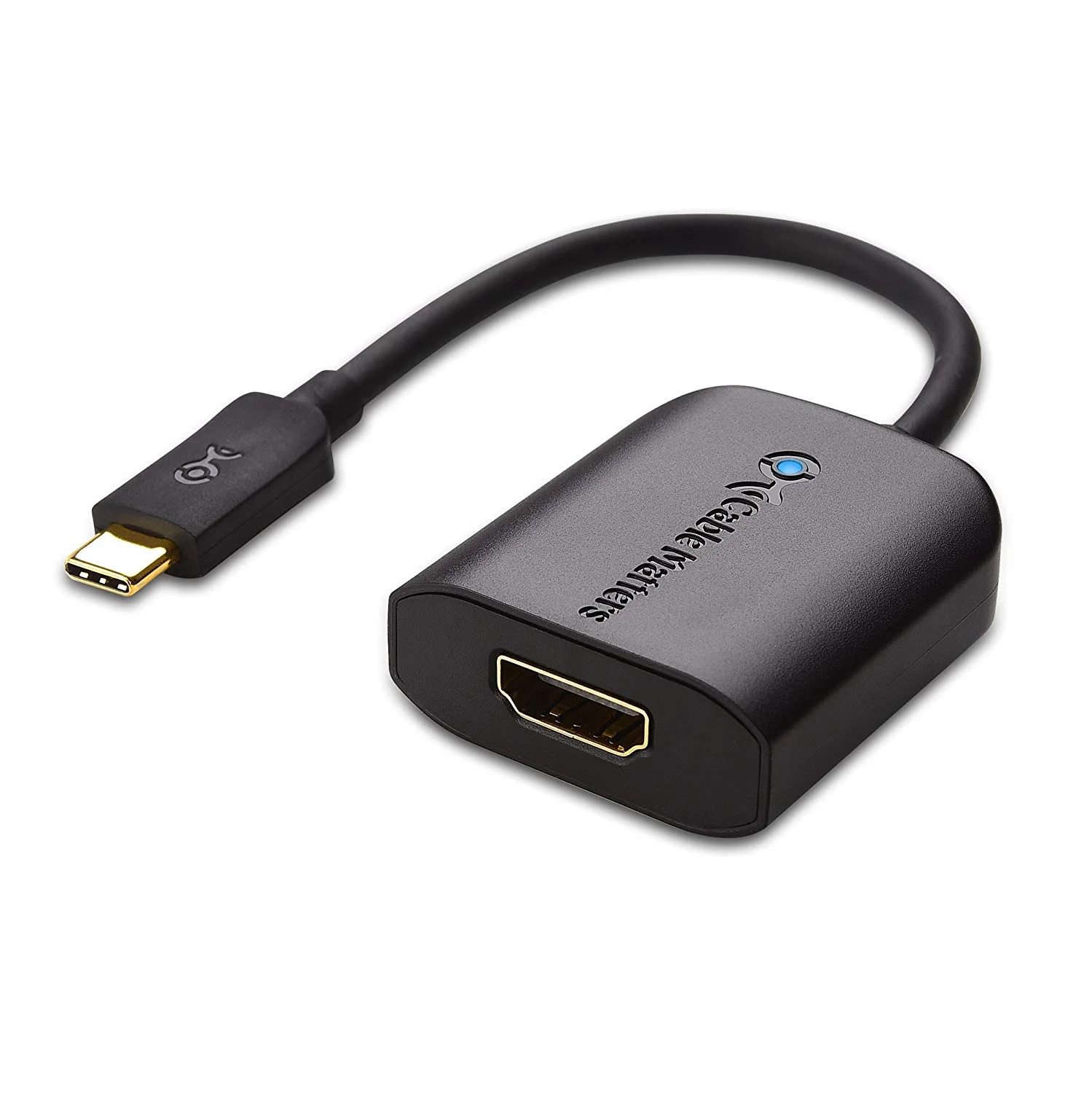
USB-C to HDMI Adapter
Many new laptops have USB-C. Make sure when you buy an adapter that it supports your specific computer make and model. Different hardware makers implement the standard slightly differently (The same connector can be used for USB, Thunderbolt, and DisplayPort signals, so you have to make sure your computer and the adapter can communicate in the same language.) I’ve had good luck with this model for VGA and this model for HDMI.
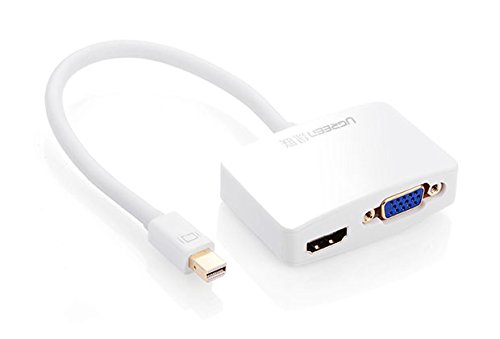
Mini Display Port Combination Adapter - VGA and HDMI
If you have Mini Display Port on your computer, you probably want to get adapters to both HDMI and VGA. Some manufacturers make combo adapters that have both HDMI and VGA out. Keep in mind that you can only use one of the outputs at a time (either VGA or HDMI but not both at once), but it still saves carrying two separate adapters - I like this one, and have carried it with my 13” Macbook Pro for a few years.

HDMI Connector Types
If you have an ultrabook or tablet, you might have Mini HDMI or Micro HDMI. If you have those, make sure you carry an adapter - these are not super common and venues might not have the correct adapter on site.
For Mini or Micro HDMI connectors, you can get an adapter that has a short cable between the Mini HDMI and the full-sized HDMI ports, like this for Mini HDMI and this for Micro HDMI, or you can get a one-piece adapter like this. Either way, be very careful that the HDMI cable and adapter combination are supported from below—do not put strain on you computer or tablet’s Mini or Micro HDMI port—these connections are very delicate, and you don’t want to damage your device with a heavy cable pulling on the port
Where do I keep my adapters?
At Talon AV, we have so many adapters that we keep them in a large clear tackle box, but likely you don’t need to carry that many on a daily basis.
For a daily carry, I like to use zipper bank deposit bags like this. They are small enough to fit easily in a laptop bag or backpack, but easily hold several video adapters, USB Cables, and a phone charger or two. I carry one in my backpack with all my most-used accessories so that I’m always prepared.
Do you have other ideas for using or storing video adapters? Let us know!

7 Questions About Event AV Your Team Needs to Ask
So you’re planning a meeting. You’ve got a venue picked out, you’ve got your speakers lined up, and your boss is ready to sign off on your plan. But Wait! What about your Audio/Visual plan? Make sure you and your team think about these questions before you sign off on your event.

When you plan an event, make sure you and your boss are asking these questions before you sign on the line. If you are the boss, then make sure you pay attention.
So you’re planning a meeting. You’ve got a venue picked out, you’ve got your speakers lined up, and you (and/or your boss) are ready to sign off on your plan.
But Wait! What about your Audio/Visual plan? Have you thought about your AV needs? Who your suppliers are going to be? Make sure you and your team think about these questions before you sign off on your event.
Do you have your AV needs documented? Make sure you know what you need AV wise, and that you arrange in advance to make sure it’s all ready for your event. Whether you provide the AV yourself, or you hire a company to do it for you, make sure you make a plan and stick to it to avoid last minute surprises.
Are you comfortable setting up yourself? If you are, then you’re all set. If not, do you need to call Steve from IT to set something up? Or is Anita from Accounting your Go-To setup wiz? No matter who you have doing the setup, make sure you know in advance who that will be and you schedule them to be there.
Do you need to bring in a professional? Remember both Steve from IT and Anita from accounting have a full-time job. Does taking your skilled employees away from their desk really make the most sense? Sure, if it’s just hooking up a laptop in the boardroom, it’s no problem, but if you’re taking them away for a long period of time, doesn’t it make sense to hire a professional?
Does your Venue provide AV support? When you’re looking at off-site meetings in Hotels and conference centers, find out what’s included in your rental. Does the room come with drop-down projection screens? Do you have to pay extra for the projector? Does a lectern and riser come with the rental, or does that cost extra? Do you have to arrange with the AV team separately, or is there a default setup? Will a technician be in the room the whole time? Will there even be a tech onsite? How much does that all cost?
Is in-house AV your best option? The answer to this is often no. Did you know that at most hotel properties, the in-house AV is not done by the hotel, but by a 3rd party company that pays to be the prefered provider? These companies often pay a 40-50% commission on the rates you pay back to the hotel. They also don’t usually travel to other locations, and have different crews for each property, so you’ll have different technicians at every event you do. They may be a great value and are certainly a great onsite resource, but they may not be your best choice, which brings us to #6:
Did you red-line exclusivity agreements in your venue contract? Given that they get 40% back from the in-house AV vendor, venues often have exclusivity clauses in their contracts which will require you to use the onsite provider. These can almost always be negotiated off the contract - the hotel salespeople are in the business of selling meeting rooms and guest rooms. While they like the AV kickback, it’s almost never a deal breaker for them, but it should be one for you. This doesn't rule out using the in-house AV, in fact they may be a great option, but if you redline the exclusivity clause, you have the option to use whoever you want, and the in-house has to be more competitive.
This is the most important question - Did you schedule time for your own breaks? You, your staff, Steve, Anita, and your AV crew all need to eat, rest, and use the restroom. Did you build in breaks for self-care, and schedule coverage for your positions while you’re gone? Your boss needs you in one piece, and you need your staff and crew in tip-top shape. Take care of yourself, eat, and don’t forget to drink water!
Microphone Tips from the Pros
“Is this thing on?”
I can’t count how many times I’ve heard someone announce this uncertainty into a live microphone to a room full of attentive listeners.
Microphones: Using one should be simple, but event attendees and presenters are often confused when you hand them a mic. Where do I hold it? Where do I set it down? And the eternal question, "IS THIS THING ON?!"
Hopefully this blog post will help clear up some basic misconceptions about microphones, and help make you a microphone pro.
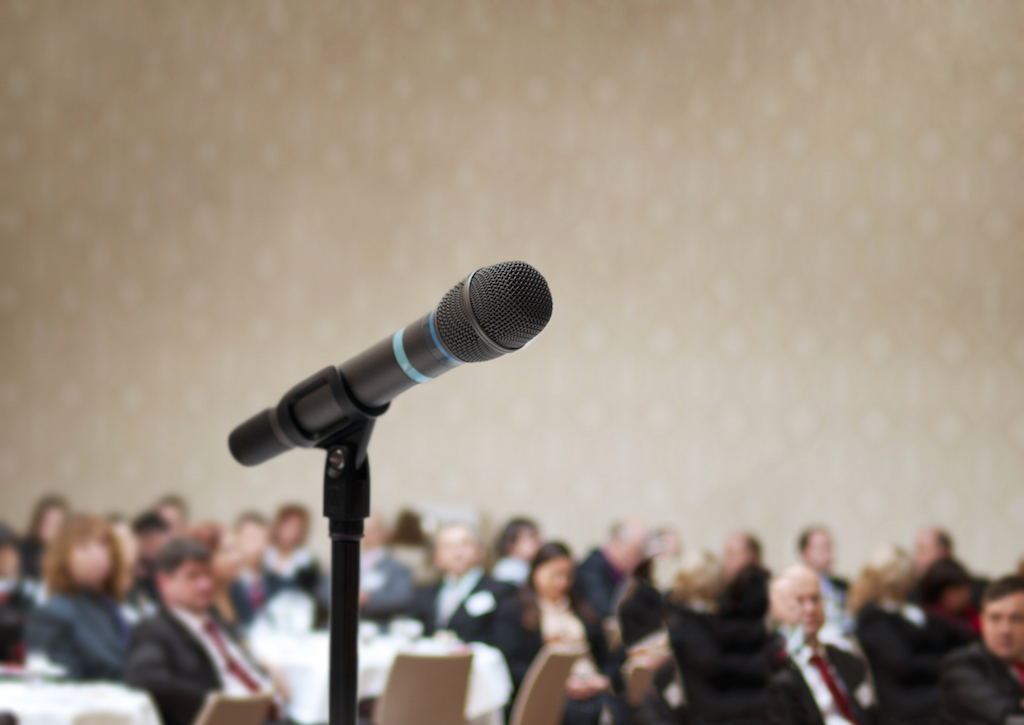
Are you confident about using microphones at your events? Here are some microphone tips from the pros.
“Is this thing on?”
I can’t count how many times I’ve heard someone announce this uncertainty into a live microphone to a room full of attentive listeners.
Microphones: Using one should be simple, but event attendees and presenters are often confused when you hand them a mic. Where do I hold it? Where do I set it down? And the eternal question, "IS THIS THING ON?!"
Hopefully this blog post will help clear up some basic misconceptions about microphones, and help make you a microphone pro.
How Do I Hold a Microphone?
Hand Held Microphone
Hold the microphone in front of you, pointed at your mouth, about 3-5 inches from your face, and about an inch below your mouth. You want to talk into the microphone, so it can pick up your voice loud and clear, but you don’t want to breathe directly into the mic to avoid heavy breathing and the annoying plosives - the popping sound when you say “P” and “B” sounds with a puff of air. We’ll cover those pesky on-off switches a bit later.
Gooseneck Microphone - Lectern or Panel Discussion
Again, make sure the mic is about 3-5 inches away and about an inch below your mouth. Try not to turn your head too far away from the mic as you reference your slides or look around the room - you still need the mic to pick up your voice to be heard by your audience. Don’t talk too far away from the mic, but also don’t talk right on top of the mic. If you’re up too close to the mic, you may hear distortion and clipping from the mic being overpowered by your voice, especially on plosive sounds. If you hear distortion, back off the mic a bit.
Lavalier Microphone
If you’re using a lavalier microphone (the kind that clips onto your shirt), make sure it’s high up and centered on your chest, so that it picks up your voice over the room noise. You want to make sure that it can still hear your voice if you turn your head and that you won’t suddenly change volume as you move. If you wear it on one side, put it on the side you’ll turn towards to face the screen.
Headset Microphone
If you’re using a headset or an “earset” (a headset that clips to only one ear), make sure you position the mic element so that it’s just off to the side of your mouth, so that you don’t get breath noise or plosives, but still close enough to hear you well. Make sure the headset or earset is securely attached to your head, and, if appropriate, clip or tape the cable to your shirt so that it doesn’t pull on the mic.
With any wireless body-worn mic, make sure you clip the mic transmitter pack (called a “belt pack” or a “body pack”) to your belt or put it in a pocket, taking care not to pull on or put strain on the microphone cable.
What is that awful squealing noise?
Feedback - we’ve all been to a meeting where the microphone squeals and screams, making the whole room cover their ears and wince.
Feedback occurs when the microphone picks up the sound from the speakers more than the sound of the person speaking. This can occur because the mic volume is too high, because the person with the mic walks in front of the speakers, or because the microphone is being held in such a way that it picks up too much room noise.
The basic rules are these:
Don’t point the mic at the speakers.
Make sure the person speaking is louder to the mic than the amplified signal.
Don’t cover the mic with your hand.
That last rule is a bit counter-intuitive - you would think that covering the mic would make the feedback go away, but in fact it can make feedback worse. Most microphones used at events are directional - they pick up sound in front of them, and reject sound in back of them. If you put your hand over the top of the mic, or cover part of the windscreen “rapper-style,” you can turn a directional mic into an ominidirectional mic - one that picks up sound from any direction. This is a great way to make feedback happen; unless you want feedback, don’t cover the mic.
If you need to make a comment off-mic or walk in front of a speaker, mute your mic instead of covering it.
On/Off
Wireless Mics
All wireless microphones have a switch of some kind, but every brand of mic is different, so the mics at your event may have a slightly different interface. But no matter the brand, there will be a switch labeled “Power” or “On/Off”. If it’s a toggle switch, flick it on. If it’s a push button, press and hold for about 3 seconds until the screen and lights turn on.
Most mics take between 1 and 3 seconds to power on, so turn the unit on, and wait a few seconds before you talk.
On mics with a push button, a long press and hold usually turns the unit on and off. Often, a short press mutes and unmutes the microphone. On these models, the light is often green to indicate “on” and red or amber to indicate “mute”. On models with only one color of light, there is usually a small text indicator on the LCD screen on the mic transmitter to indicate mute status.
If there’s a sound operator in the room, he or she may ask you to leave the mic transmitter on all the time and allow him or her to unmute the mic remotely when you begin your presentation and mute it for you when you come offstage. If you turn off your mic manually, the operator won’t be able to remotely turn it on again, so make sure you leave the transmitter on and unmuted if that’s what the technician asked when they gave you the mic.
Gooseneck Mics
If you’re using a gooseneck mic at a panel discussion or lectern, there may be a push to talk button. Many of these mics are Push-On-Push-Off, meaning you push the button once and let go to turn it on, and push again and let go to turn off after you’re done using the mic. If that’s the case, make sure you turn off your mic after you speak to avoid picking up rustling paper or any side comments you make. Often these mics will have a light on the mic or the base to indicate the mic is on.
If the mic is Push-and-Hold to talk, press the button and keep it pressed as long as you are speaking, then release the button when you’re done talking.
Off to the meeting
I’ve covered the major types of microphones you’ll encounter at events, so with this guide under your belt, you should be ready for your next meeting.
Just remember the basics - the mic has to pick up your voice, and avoid picking up the sound in the room. Avoid plosives and feedback with proper mic placement, and take note of your on-off switches.
Now you’re a microphone pro!
© 2019 Talon Entertainment - All Rights Reserved
Cover image via Depositphotos - Halfpoint
11 Quick AV Tips
Before your next meeting, take a look at these 11 AV pointers.
Starters
- When you walk into a meeting room, make sure you know where the light controls are, where the microphones are, and who to ask if you need help - you don’t want to be scrambling if there’s a problem during the meeting.
- If you have an onsite technician, make sure they know who will be speaking - give them an agenda so they can follow along and be prepared for the next part of the meeting

Make sure you're ready for your presentation with these quick tips.
Before your next meeting, take a look at these 11 AV pointers.
Starters
When you walk into a meeting room, make sure you know where the light controls are, where the microphones are, and who to ask if you need help - you don’t want to be scrambling if there’s a problem during the meeting.
If you have an onsite technician, make sure they know who will be speaking - give them an agenda so they can follow along and be prepared for the next part of the meeting
Slides and Video:
Make sure you know if the projector or AV system you’re using has VGA or HDMI inputs (or one of a few other less common standards) and that you have the right cables to use with it.
Make sure you (or your AV company) have all the video display adapters you’ll need.
There are LOTS of variations of video adapters for laptops (different generations and lines of both Macs and PC’s often need different adapters), so make sure that you have at least the most common ones:
USB-C to HDMI and VGA
Mini DisplayPort (thunderbolt) to VGA and HDMI
HDMI to VGA
If you’re using one laptop for all the presentations (We highly recommend this), load and test all the slides for the next session at each break. If you’ve got all the slides loaded at the break, you’ll have much less to set up between talks.
If you’re using a wireless presenter remote, make sure you show the presenters the button layout when you load their slides - you don’t want them to fumble with the buttons while they’re on stage. Make sure to show them forward, back, and blank - even if they won’t use the blank button, it can be surprising if they push it accidentally.
If presenters have video and audio, make sure you have tested the video and audio before they go on - sometimes videos and powerpoint don’t play nice.
Current versions of PowerPoint and Keynote embed the video into the presentation file, but if you have trouble with videos being lost or unlinked, the secret to this is make sure the files are in the same place relative to their original location - put them all in a folder with the powerpoint file BEFORE you add them to a slide, and then move the whole folder to the presentation computer
ALSAYS bring an extra copy of the video or audio files - you can re-link them on the show computer during the break if you need to.
Audio:
Hook up audio for the presentation computer just in case - you never know when someone will add videos or audio last minute.
If you’re using wireless mics, check the batteries before you start and make sure you have spare batteries on hand. Some mics use 9V batteries, some use AA, and some mics use special rechargeable batteries, so make sure you have the right kind!
If you’re using a lavaliere microphone, make sure the mic is attached to the presenter’s shirt as close to the center of their collar as possible, and make sure it’s close to the presenter’s mouth - you want it to pick up their speech as well as possible, and avoid background noise.
If you’re passing mics for Q&A, make sure the audience members hold the mic close enough to their mouth - you ideally want it about 4” away and pointed directly at the speaker’s mouth. If the speaker holds it down at their chest, it will be hard to hear the question.

Thank Goodness for the ADA: An AV Guy’s Challenge for 2016
Last week, I fell and hurt my leg. It’s not a serious injury, and I’ll be fine in a week or two, but it’s eye opening to see how much harder it is to work and live in a world designed for people with two working legs. I’m really grateful for the accessibility features of public buildings, particularly door openers and easy-to-grab handles and railings. Because I’m suddenly using these features, I’m noticing how often they are not there. In one venue, I came up against exterior doors and restroom doors without automatic door openers, room doors without easy-to-grab pull handles, and aisles between chairs and tables that were not wide enough to maneuver crutches through.
Click Through to Read More
Last week, I fell and hurt my leg. It’s not a serious injury, and I’ll be fine in a week or two, but it’s eye opening to see how much harder it is to work and live in a world designed for people with two working legs. I’m really grateful for the accessibility features of public buildings, particularly door openers and easy-to-grab handles and railings. Because I’m suddenly using these features, I’m noticing how often they are not there. In one venue, I came up against exterior doors and restroom doors without automatic door openers, room doors without easy-to-grab pull handles, and aisles between chairs and tables that were not wide enough to maneuver crutches through.
As is the nature of event production, I often find myself lugging heavy things in and out of trucks, onto sidewalks, and into buildings. Current injury notwithstanding, I’m usually physically able to climb stairs, step onto curbs, and lift things up and down. Even as someone who’s fairly young, strong, and mobile, I’m always glad to find a curb cut, an access ramp, and an elevator almost everywhere I go, because I know I will be less tired and less sore the next day. When I find these features in a building, I am reminded that it’s not by accident that buildings are required to have accessibility features. Curb cuts, ramps, and elevators are the product of years of protest and legal battles fought by people with physical disabilities demanding access to the same libraries, businesses, and schools that I’ve accessed my whole life. These are life-changing tools for a person with limited mobility, and we can’t diminish the impact on people with temporary or permanent mobility impairments. As a young strong person, I’m not the intended user, but I’m always struck by how much easier MY life is because of these features. As someone with a temporary injury, I benefit especially right now, but even people with no injury or disability benefit every day. Just think of how useful they are to all the UPS drivers who can wheel packages up the ramp instead of carrying them by hand, or the moving crews who can use the elevator instead of the stairs to get your dresser up to your new 8th floor apartment.
As an event technical director, my job is to make event technology work. My job is typically centered around audio, video, and lighting, and there are usually other event planners involved in making more of the general logistics decisions. I’m not a furniture or party rental expert, but given my own personal experience, as well as my advocacy work, I’m going to set myself a challenge for the rest of 2016. I’m going to challenge myself to be an evangelist for accessible event design. Of course I’ll advocate for the technical aspects of accessibility, but I also want to be a better advocate for the future me who unexpectedly comes to a conference on crutches or in a wheelchair, and the future blind conference attendee who needs the program in braille, and the future deaf or hard of hearing viewer who needs captions on the online conference videos.
I’m challenging myself to make my events in 2016 more accessible to ALL our audiences, and I hope you’ll join me in that goal. And at the end of 2016, let’s make it a habit.
Author Tim Kerbavaz is the owner of Talon Entertainment, a Davis, CA based Audio-Visual company.
He can be reached by email at tim@talonent.com.
Header Image Credit: Wheeler Cowperthwaite
You want how many microphones?
“You want how many microphones?”
I’ve found myself asking clients that question on many occasions. Big board meeting. National membership meeting. Round-table committee discussion. Meetings where there are 30 to 100 people who all need to be able to hear and be heard.
I’ll be honest -- you cannot have 50 microphones live at once in one meeting room without digital processing and expect to not have feedback. There’s no way one sound technician can manually keep track of who’s speaking and who’s up next and keep it all going smoothly. It’s not going to be pretty. And think of how many cables you’d need!
Luckily there’s a solution that lets everyone have a mic, prevents feedback, and keeps technicians from ripping their hair out.
It’s called an Audio Discussion System, or alternately known as a “Congress” or push-to-talk system.
“You want how many microphones?”
I’ve found myself asking clients that question on many occasions. Big board meeting. National membership meeting. Round-table committee discussion. Meetings where there are 30 to 100 people who all need to be able to hear and be heard.
I’ll be honest -- you cannot have 50 microphones live at once in one meeting room without digital processing and expect to not have feedback. There’s no way one sound technician can manually keep track of who’s speaking and who’s up next and keep it all going smoothly. It’s not going to be pretty. And think of how many cables you’d need!
Luckily there’s a solution that lets everyone have a mic, prevents feedback, and keeps technicians from ripping their hair out.
It’s called an Audio Discussion System, or alternately known as a “Congress” or push-to-talk system.

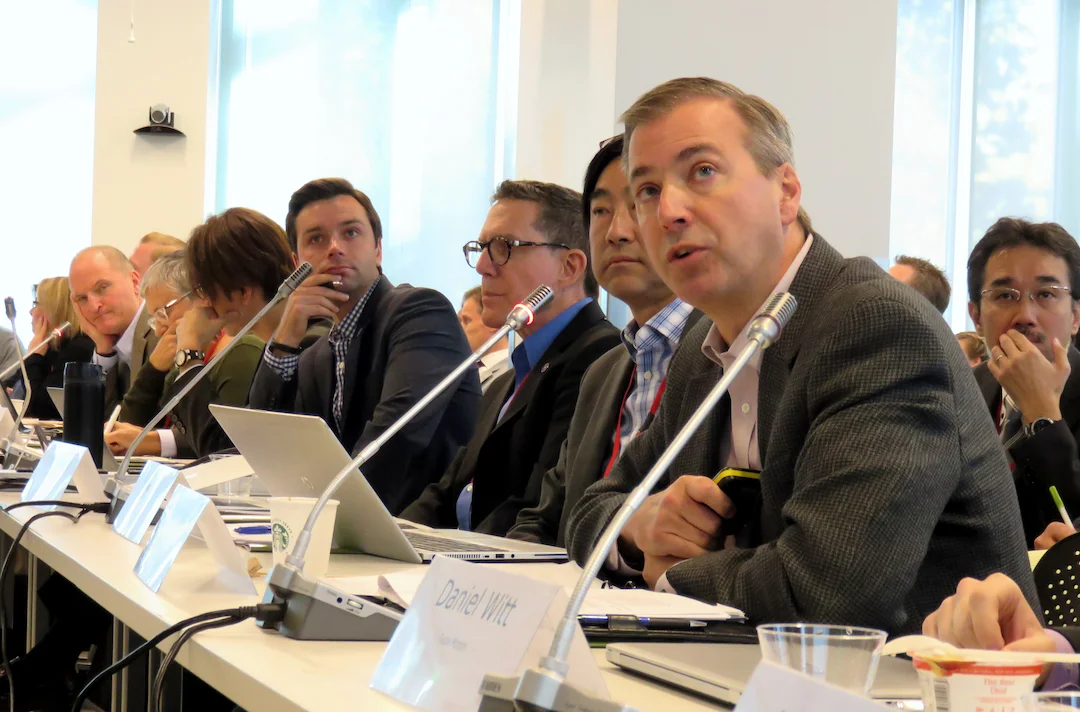
A push-to-talk system in use at a business meeting.
A Discussion System can come in multiple styles and feature sets, from installed systems with voting, speaking order tracking, translation, and video displays (as is used at the United Nations), to wireless systems with multiple zones, to simpler portable systems with basic push-to-talk microphones and fewer frills.
All of these systems offer simple wiring, as most allow the mics to daisy-chain around the table. They also have a central processor that both limits the number of simultaneous mics that are turned on as that processes and adjusts the audio on the fly, preventing feedback and excessive room noise in recordings and conference calls.
Each mic unit has a push to talk button on the mic base, and in many of these systems the base contains a small speaker, allowing all the participants to hear each other clearly without external speakers, and all can all be plugged into external sound systems for reinforcement, conferencing, or recording.
These systems provide a solution for events where everyone needs to be heard. They are typically used with audiences seated around a U-shape or hollow square table arrangement, with all the participants around the room facing in, or with rows of delegates in classroom style or tiered seating all facing a central dais or head table. They can be used with one mic station per seat, or spaced between alternating seats, with one mic for every 2 people.
We typically recommend that no more than two people share a discussion mic, because the bases are daisy-chained together. With a wire running in each direction, it’s best that they not be picked up and moved so the cables from the other units won’t be pulled too much.
If you are planning a large board meeting, or you’d like a large group to be able to have a round table discussion, with or without an off-site teleconference, a multi-mic discussion system is a solution worth exploring. We carry a range of these systems, and we’d be love to chat about your event. We’re in California, but if you’re curious about how these systems work, feel free to drop me a line no matter where you are -- I love to geek out about AV technology, especially if it helps folks find solutions to their event technology problems.
What Causes Audio Feedback?
What is feedback?
Ouch! That screech you hear from the sound system when you hold the mic wrong? That’s Audio Feedback. No, no, not negative comments -- Audio Feedback is when sound from the loudspeakers comes back into the microphone, creating a “feedback loop” and causing an awful howl.
Here's a video explaining what feedback is and how it works...
What is feedback?
Ouch!
That screech you hear from the sound system when you hold the mic wrong? That’s Audio Feedback.
No, no, not negative comments -- Audio Feedback is when sound from the loudspeakers comes back into the microphone, creating a “feedback loop” and causing an awful howl.
Here's a graphic explaining what feedback is and how it works, and you can watch a video explanation here:
So I know what it is, but how do I prevent it?
If you have a sound technician in the room, it’s their job to keep the screech away, but how do you prevent it when you’re on your own? Read on for some of the most useful tips to prevent microphone feedback at your events.
Use directional microphones to your advantage
Most microphones you’ll encounter at venues are “Unidirectional” - microphones that pick up sound from the front, and reject sound from the back. Make sure you keep the microphone on stage and that the microphone is behind the main speakers - Feedback is caused when the microphone picks up the amplified audio from the speakers, so make sure the mic can’t “hear” the sound from the speakers.
Speak close to the microphone
If you speak closer to the microphone, it will pick up more sound from your voice compared to the background noise, increasing the clarity of your voice and reducing the chance for feedback. If you’re going to shout or belt out a loud note, make sure you back away a bit to avoid overpowering the microphone or sound system, which can cause distortion, and possibly damage.
Turn off unused mics
You get a lot more volume from your sound system without the risk of feedback when you have one mic on than if you have 4, or 20 mics turned on. Make sure you limit the number of microphones in use at one time by turning off or muting unused microphones. If you’re on a panel where you take turns speaking, you might mute your mic in between comments.
(We sound geeks call the amount of volume you can get without problems "gain before feedback," and it is reduced with every additional open microphone. See a more technical explanation on Wikipedia here: https://en.wikipedia.org/wiki/Gain_before_feedback.)
Author Tim Kerbavaz is the owner of Talon Entertainment, a Davis, CA based Audio-Visual company.
He can be reached by email at tim@talonent.com.
For more information about Talon Entertainment, visit http://www.talonent.com
© 2016 Talon Entertainment - All Rights Reserved
Presenter's guide to preventing AV problems
Have you ever launched full-swing into a great multimedia presentation, only to have the technology fail in the middle of your talk? Have you been left wondering, “Why won’t my video play?” or “Why won’t my file open properly on this computer?” We know we can’t always be there to help, so we’ve developed this guide with our best tips to help you make sure your own presentations go off without a hitch.
You're prepared for your big presentation, with backups in hand, but what do you do if you encounter problems at setup, and don’t know how to fix them?

Cartoon © Depositphotos.com/andrewgenn
Have you ever launched full-swing into a great multimedia presentation, only to have the technology fail in the middle of your talk? Have you been left wondering, “Why won’t my video play?” or “Why won’t my file open properly on this computer?” We know we can’t always be there to help, so we’ve developed this guide with our best tips to help you make sure your own presentations go off without a hitch.
You're prepared for your big presentation, with backups in hand, but what do you do if you encounter problems at setup, and don’t know how to fix them?
The biggest mistake you can make is to assume that everything will work just the way you expect it to. Computers are fickle. Our number one tip is to test all the technology you’ll be using in the venue in the exact configuration you’ll be using it at the event. This “dress rehearsal” will help you find any technical bugs, and will help you feel confident that your event will go as planned. After rehearsing, you can focus on giving a killer presentation and feel confident that all your technology will work as planned.
Here are our top tech tips for presentation problem solving:
Before you leave the office
- If you are sending your slides ahead by email, bcc your personal email address to make sure the attachment comes through ok.
- If bringing your slides on a USB disk, use a USB drive that has nothing else on it. You don't want the AV tech to go through all your personal files looking for the right presentation.
- Always have a backup copy of your presentation in Dropbox or another cloud storage sites, and/or in your email, just in case your USB drive gets lost or corrupted.
- Bring your own computer and any adapters you will need in case the conference-provided computer will not work. Make sure you have adapters to VGA, DVI, and HDMI, as different venues may require different connections.
- If your presentations have audio, verify with conference organizers that an audio connection will be available for your presentation room - often that will not be hooked up unless you ask for it specifically.
- Avoid relying on online content. If you really need an Internet connection for your presentation, make sure you specifically request it on the presentation computer. Try to bring offline copies of any material you need.
- If live Web content is critical to your presentation, and you cannot bring an offline backup, bring a mobile hotspot, or a cell phone with tethering enabled, just in case.
- When you communicate with event organizers, specify if you need Presentation View (with your notes) or if you need a Mirrored desktop. Most computers can be set up either way, but the event’s AV team will need to know in advance to set that up.
- If you have complex graphs in your presentation, save them as static images (.jpg or .png), in case the presentation computer does not render them correctly.
- If you are using a Mac to create your PowerPoint slides, make sure you test your slides on a PC before you leave the office. Pay special attention to transitions, graphs and media files. You may not have the option to use a Mac onsite.
- If you are using Keynote to make your slides, make sure that the organizers know you will need a Mac with that software to give your presentation. Make a backup of your slides as both a PDF and a PPT just in case. Test both on a PC before you arrive.
Dealing with Embedded Media
- Videos and embedded media are involved in 90% of the presentation problems we deal with at events.
- Make sure if you create a presentation with video or audio in PowerPoint, that you embed the files into the .pptx file, and don’t just link them to a file on your computer. That said, ALWAYS bring a backup copy of any embedded media, just in case it didn’t embed properly.
- Make sure you have your video as an external file in more than one format. If it’s a .mov file it will most likely NOT play in PowerPoint on a PC and if it’s .wmv it will NOT play on a Mac.
- If you are presenting on PowerPoint 2010 or 2011, make sure you have the media in Windows Media format for a PC or Quicktime format for a Mac.
- If you are presenting on Microsoft Office 2013 or Office 365, bring the files in .mp4 format with H.264 encoding for best cross platform compatibility, but make sure to bring backups.
- (For more information about supported file types in PowerPoint 2013 see this post from Microsoft.)
- Copy the presentation and all its associated media onto the presentation computer - do not run it off a USB drive. If that comes unplugged or your drive fails, your media will not play.
Onsite
- Load your slides at least two breaks before your talk. Do not expect to plug in your USB drive as you’re being introduced. TEST your presentation when you load your slides into their final destination.
- If you have embedded media, load the slideshow and all associated media into its final location on the presentation PC before you test it. And once you test it, do not move it to another folder on the computer. The files may become unlinked.
As they say, an ounce of prevention is worth 10,000 embedded videos. Or something like that…
If you’d like to offload your presentation worries to professionals, and your event is in Northern California, we would love to help you with your event.
Give us a call at 530-601-9690, shoot us an email at info@talonent.com, or visit us online at www.talonent.com to chat about how we can help you make your next event awesome.